> For the complete documentation index, see [llms.txt](https://communityone.gitbook.io/communityone/llms.txt). Markdown versions of documentation pages are available by appending `.md` to page URLs; this page is available as [Markdown](https://communityone.gitbook.io/communityone/feature-deepdive/sparkai/spark-website-widget.md).
# Spark Website Widget
{% hint style="info" %}
**Click** [**here**](https://discord.com/oauth2/authorize?client_id=1069423090225918082\&permissions=275146722545\&integration_type=0\&scope=applications.commands+bot\&redirect_uri=https%3A%2F%2Fcommunityone.io%2Fdashboard%2Fbot-auth-complete%2F%3Fsource%3Dgitbook\&response_type=code) **to introduce our bot to your server.**
{% endhint %}
## Website Widget
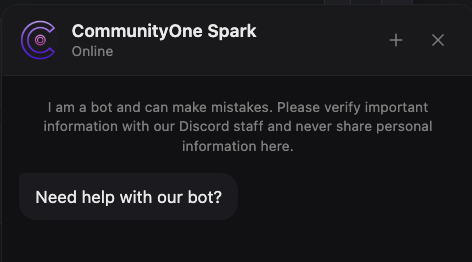
The Website Widget lets you embed your Spark AI agent as a chat bubble on any webpage. Visitors get instant, on-brand answers powered by the same knowledge base your Discord bot uses — no login required.
### Prerequisites
The Website Widget is a Premium feature. Your server must have one of the following:
* Spark Premium
* Analytics (any level)
* Enterprise
If you don't see the Website Widget tab in your dashboard, you may need to upgrade your plan.
### Getting Started
{% embed url="" %}
#### Step 1: Create a Widget
1. Go to your CommunityOne Dashboard → Spark → Website Widget tab.
2. Click + Add Widget.
3. A new widget is created in a disabled state. Click Edit to start configuring it.
#### Step 2: Enable the Widget
At the top of the editor, you'll see a master toggle. Flip it to On when you're ready for the widget to go live. While the toggle is off, the embed snippet will not load on your site even if you've pasted it. Remember to add the allowed domain before switching it on.
### Configuring the Agent
The Agent subtab controls what your widget says and how it behaves.
#### Widget Name
The display name shown in the chat header and in your widget list.
* Max length: 80 characters
* Example: `CommunityOne Support`, `Acme Help Desk`
#### Custom Prompt
Tell the agent who it is and how it should behave. This is the core instruction that shapes every response.
* Max length: 4,000 characters
* Example: *"You are a friendly support agent for Acme Inc. You help users with onboarding, billing, and feature questions. Always be concise and link to docs when possible."*
#### Conversation Style (Optional)
Fine-tune the agent's personality beyond the base prompt.
Style Tags — Pick up to 5 tags across four groups:
| Group | Options |
| ------- | --------------------------------------------- |
| Tone | Friendly, Professional, Playful, Warm, Direct |
| Brevity | Concise, Detailed, Adaptive |
| Persona | Empathetic, Witty, Encouraging, Expert |
| Voice | First-person ("I"), Team ("we") |
After selecting your tags, click Generate Style. We use what we already know about your community plus the tags you picked to write a complete style paragraph — no blank-page anxiety. You can edit the generated text freely.
Response Style Instructions — The generated (or manually written) paragraph that guides the agent's tone in every reply. This is separate from the custom prompt so you can iterate on personality without touching your core instructions.
Limit Response Length — Control how verbose the bot is:
| Option | Behavior |
| ----------------- | ----------------------------------------------------------- |
| Let the AI Decide | The agent picks an appropriate length based on the question |
| Conversational | Keeps responses under 3 sentences |
| Casual | Keeps responses under 5 sentences |
#### Starter Questions (Optional)
Configure up to 3 clickable suggestion chips that appear before the visitor sends their first message. These nudge users toward your highest-value conversation paths.
* Max length per question: 120 characters
* Examples: *"How do I get started?"*, *"What plans do you offer?"*, *"Can I see a demo?"*
Leave all three blank to hide the chips entirely.
#### AI Rules (Optional)
Natural-language "if this, then that" instructions that handle specific scenarios the base prompt doesn't cover. Write conditions and actions in plain English — no code, no flowchart builders.
Examples:
* *If the user asks for a discount* → *Offer them code WELCOME10*
* *If someone starts to bully you* → *Tell them this is a friendly community*
* *If they ask about pricing for teams* → *Point them to the contact form at /contact*
* *If the user asks something you don't know* → *Suggest they ask in our Discord server*
You can add as many rules as you need, reorder them, or delete any rule.
#### Disclaimer (Optional)
A small note displayed inside the chat window. Useful for legal or accuracy disclaimers.
* Max length: 1,000 characters
* Example: *"AI responses may be inaccurate. Please verify critical information."*
* Show only at start — Toggle this on (default) to display the disclaimer only at the beginning of the conversation. Toggle off to show it persistently.
### Customizing the Style
The Style subtab controls the visual appearance of the widget. A live preview pane is shown next to the form so you can see every change in real time before saving.
#### Theme
Choose between Dark and Light mode for the chat window.
#### Primary Color
Your brand color, applied to the chat header, send button, and launcher bubble. Enter any hex value (e.g. `#7D19FF`) or use the color picker. Click the reset button to revert to the default.
#### Profile Picture
Upload a custom avatar that appears in the chat header and next to bot messages.
* Accepted formats: PNG, JPG, or SVG
* Max file size: 1 MB
* Click Remove to clear the avatar and fall back to the default icon.
#### Get Human Help
Sometimes the bot isn't the right answer. This adds a single "Get Human Help" button at the bottom of the chat that routes high-intent visitors to wherever your humans actually live.
Supported channels:
| Channel | What to enter |
| --------- | -------------------------------- |
| Discord | Your Discord invite link |
| Instagram | Your Instagram profile URL |
| Facebook | Your Facebook page URL |
| Telegram | Your Telegram group/channel link |
| Discourse | Your Discourse forum URL |
| Webpage | Any URL (e.g. a contact page) |
| Email | An email address |
Select None to hide the button entirely.
#### Bubble Alignment
Position the chat bubble on the Left or Right side of the screen. Default is right.
#### Launcher Icon
The icon inside the floating chat bubble. Choose from:
* Chat (speech bubble)
* Headset (support)
* Robot
* Sparkle
* Waving hand
#### Emoji Override
Paste any single emoji to override the icon entirely (e.g. 🚀, 👋, 🦊). This takes precedence over the icon selection above.
#### Launcher Background
| Option | Description |
| ------ | ----------------------------------------------------------- |
| Filled | Solid background in your primary color — maximum visibility |
| Subtle | Lighter, understated background |
| Bare | No background — works best with an emoji or photo avatar |
#### Launcher Animation
Add subtle motion to the launcher to grab attention:
| Option | Description |
| ---------------------- | ----------------------------------- |
| None | No animation |
| Wave once on page load | A one-time wave when the page loads |
| Gentle pulse | A continuous soft pulse |
| Occasional bounce | Periodic bounce to catch the eye |
#### Initial Message
The first message the bot sends when the chat is opened.
* Max length: 280 characters
* Example: *"Hey! How can I help you today?"*
### Embedding on Your Website
The Embed subtab is where you configure allowed domains and grab the snippet.
#### Step 1: Add Allowed Origins
The widget will only load on domains you explicitly allow. This is a security requirement — requests from unlisted origins are rejected.
* Enter full origins including the scheme: `https://example.com`
* Each origin (scheme + host + port) must be listed separately
* `https://example.com`
* `https://www.example.com`
* `http://localhost:8080` (for local development)
* Press Enter after each origin to add it as a chip
* Click Save allowed origins when done
> Note: Allowed origins are shared across all widgets on the same server.
#### Step 2: Copy the Embed Snippet
Once the widget is saved, a snippet is generated. Copy it and paste it just before the closing `` tag of every page where you want the widget to appear.
\